In this article we will show you how to add an IMAP email account to the open source email client, Thunderbird. Setting up your email account using IMAP will allow you to sync messages across all your devices while keeping them stored on the mail server.
Step One
If you are setting up Thunderbird for the first time, you will be prompted to enter your credentials if you are adding an account for the first time. If this is the case, please skip to Step Three.
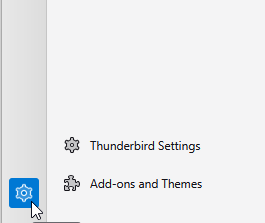
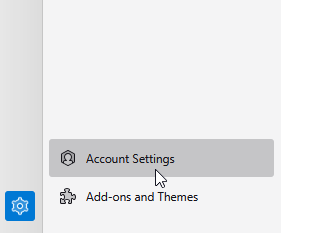
If an account has already been added to Thunderbird, you will need to navigate to the Add Account section first. Select the Settings icon in the bottom left of your screen, and then select Account Settings.
Step Two
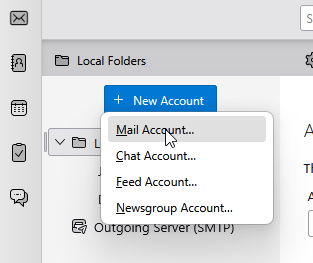
This will open the Account Settings tab. In the top left, please click the button that says New Account, then select Mail Account from the dropdown.
Step Three
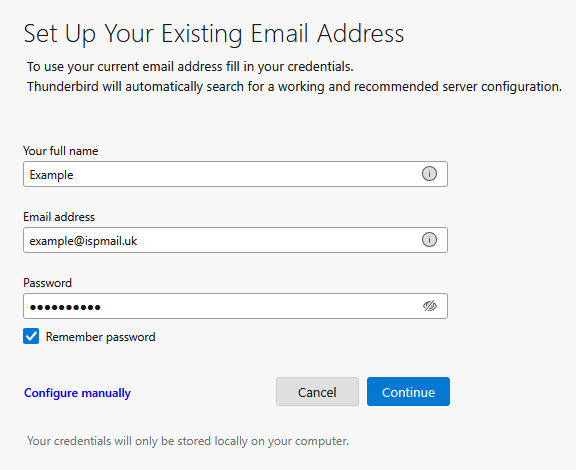
On this screen you will need to enter your Full Name, Email Address and Password.
Once completed, select Continue.
Step Four
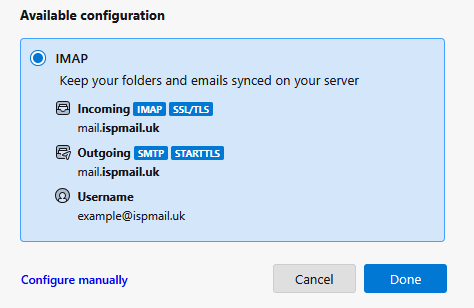
Thunderbird should automatically detect the settings required. Click Done to continue, and skip to Step Seven.
If it fails to do so, please select the option to Configure manually and continue to Step Five.
Step Five
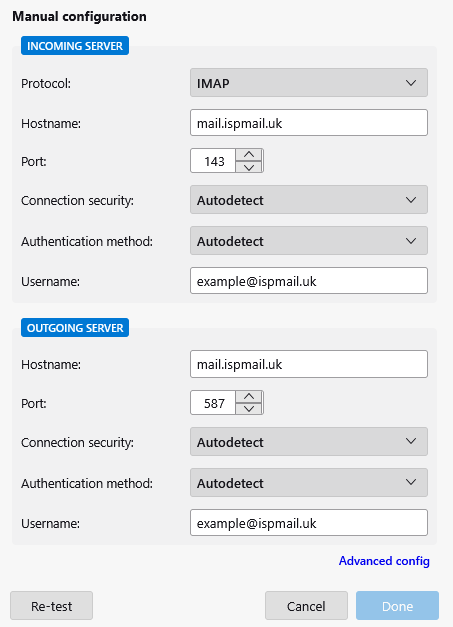
Manually enter the settings as below.
Step Six
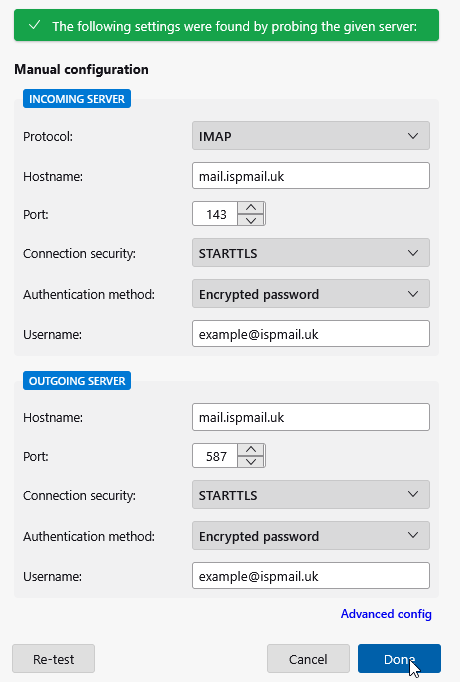
Click Re-Test and confirm that the settings have been correctly detected. Then click Done.
Step Seven
Your email account is now setup in Thunderbird. You can close the Account Setup and Account Settings tabs.
