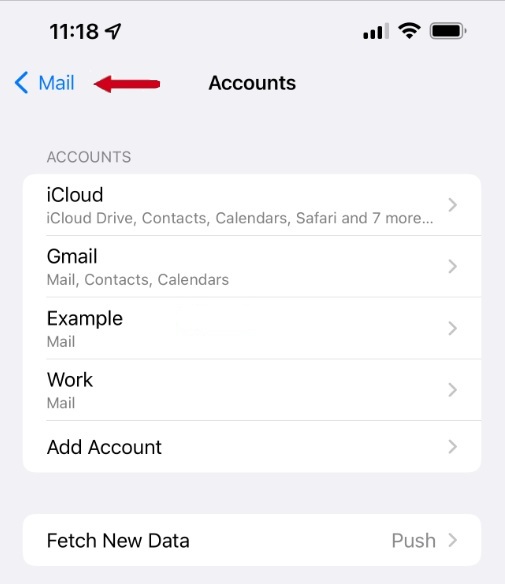
Step One
Open Settings on your iPhone and tap Mail.
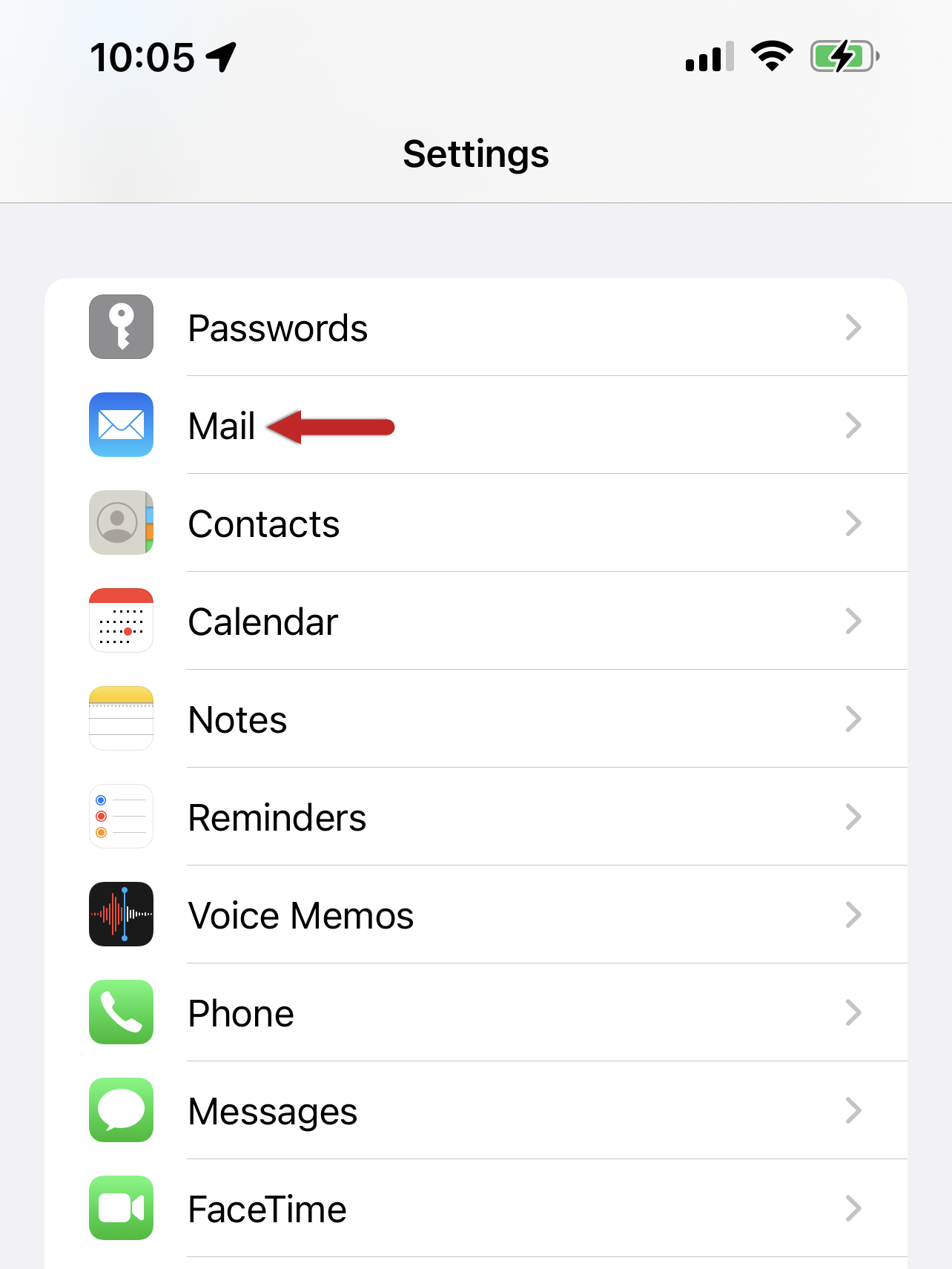
Step Two
Tap Accounts.
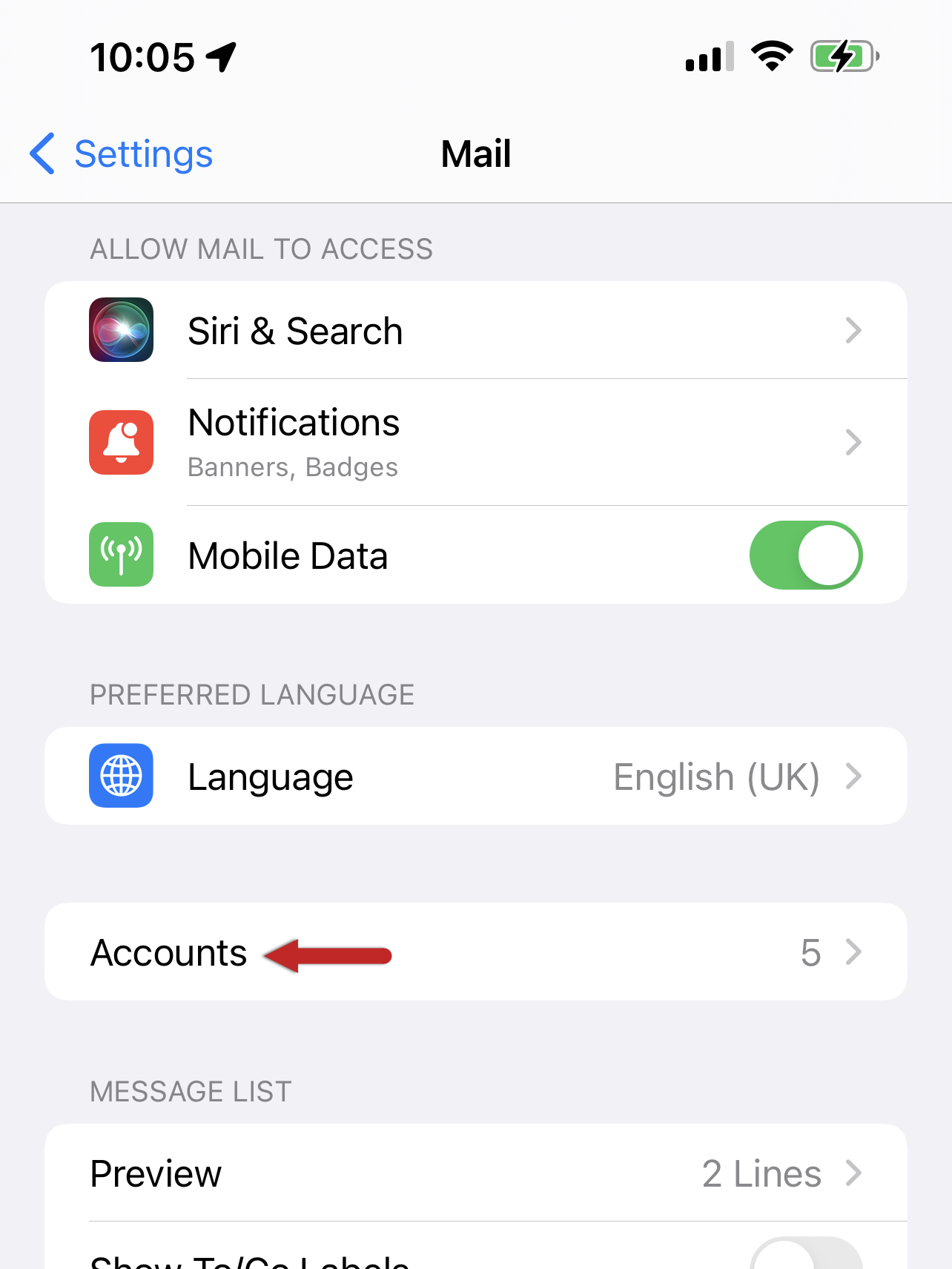
Step Three
Tap Add Account.
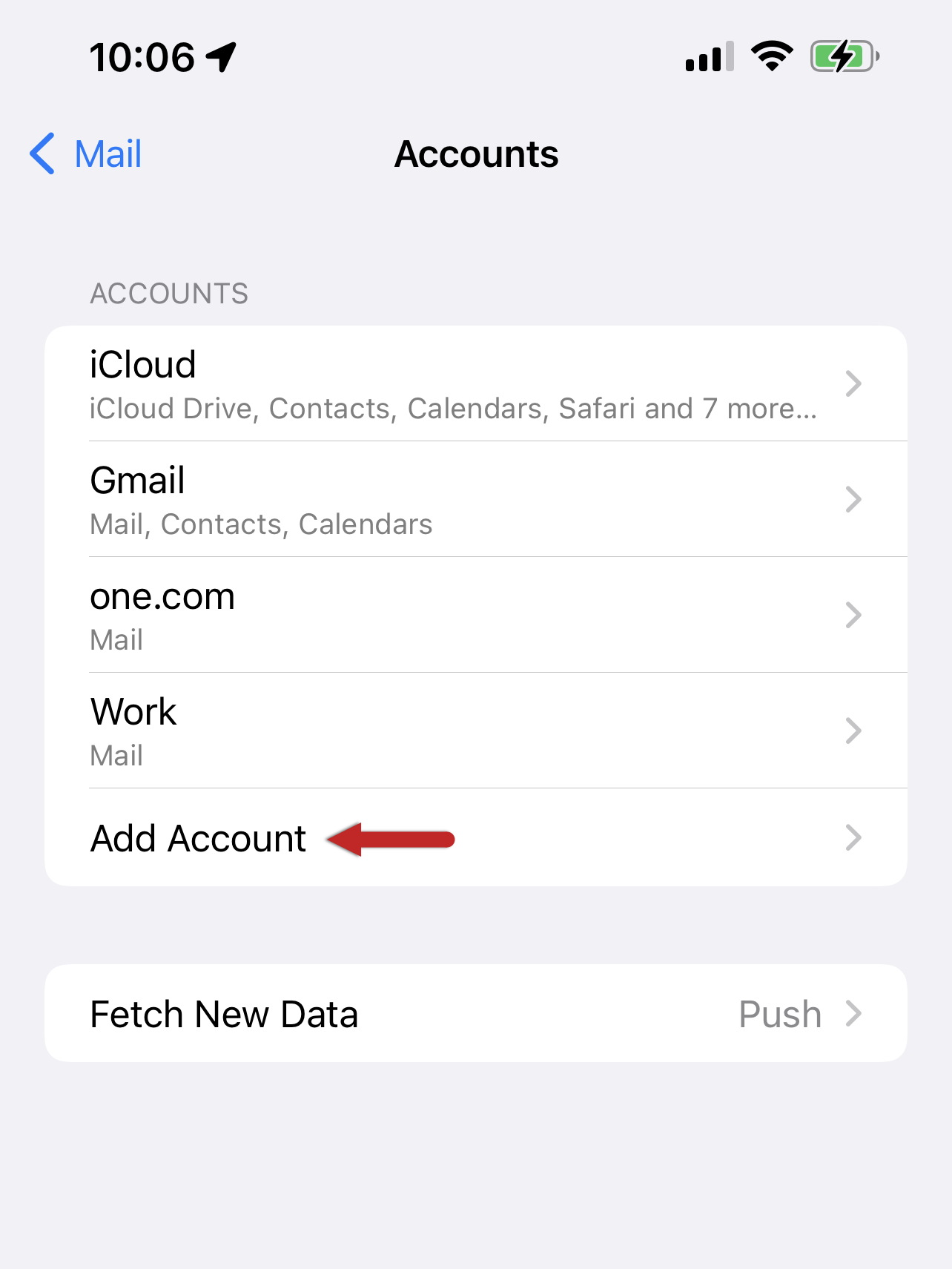
Step Four
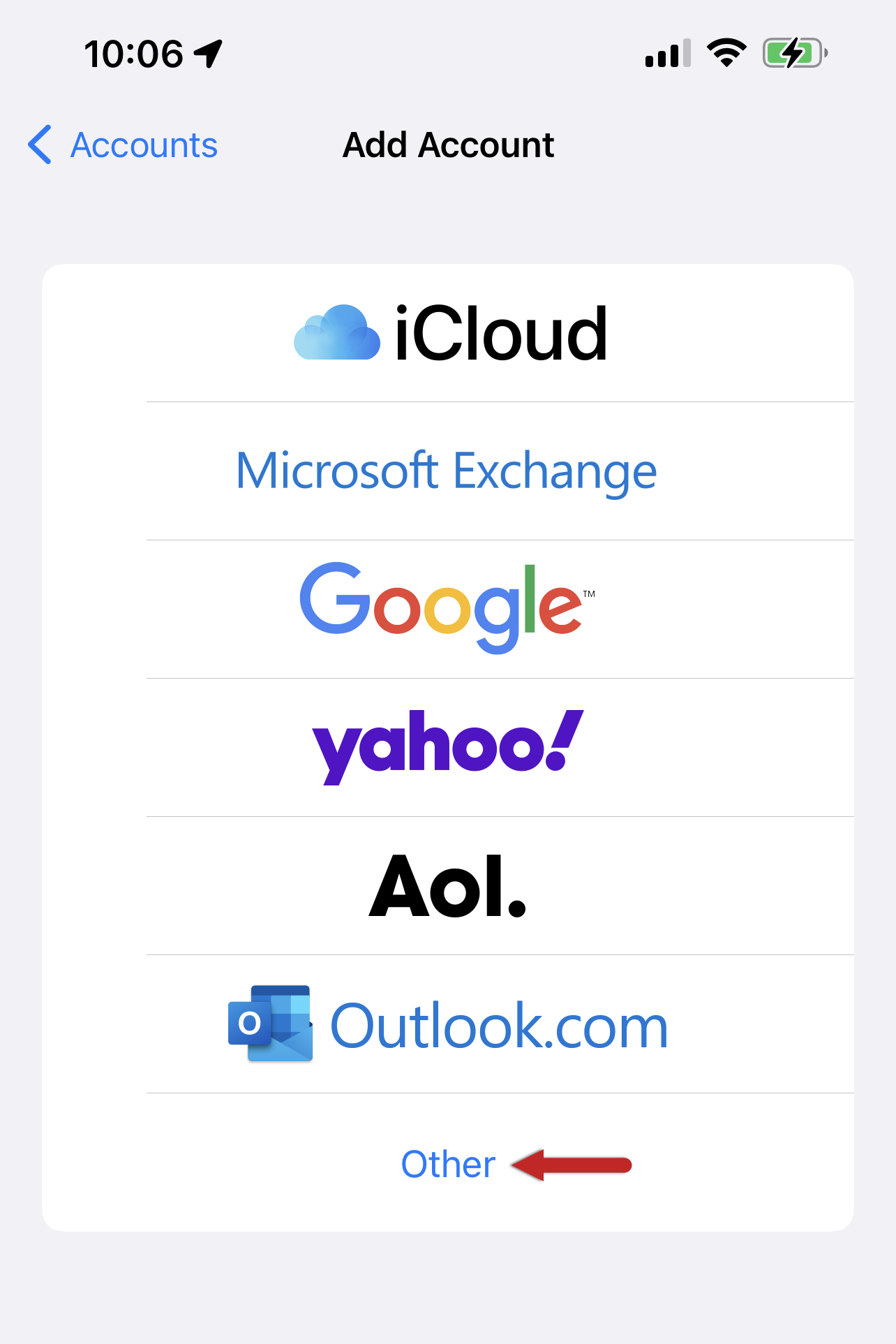
You will see all the account options available. Select Other as the type of account.
Step Five
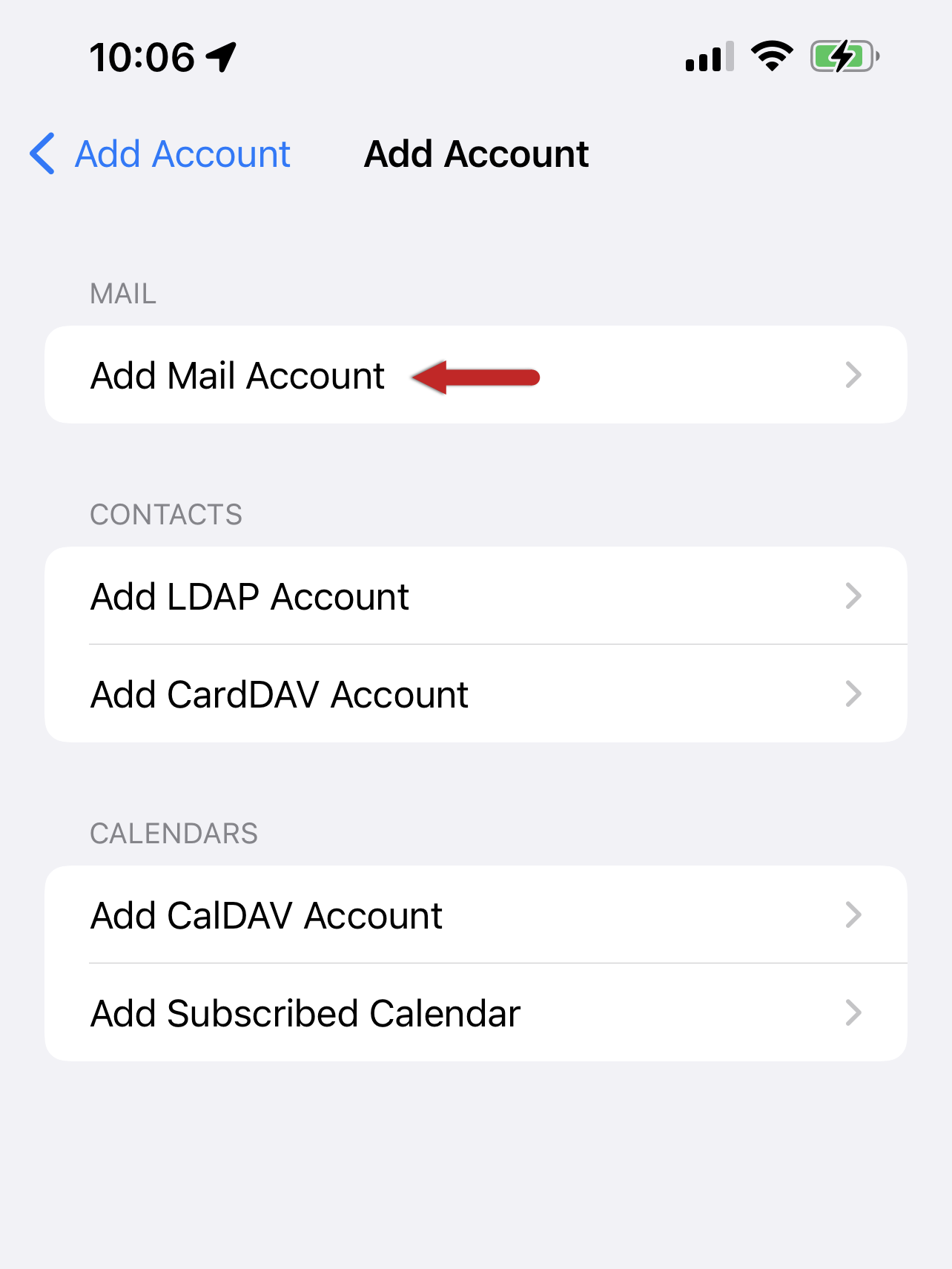
Tap Add Mail Account at the top of your screen.
Step Six
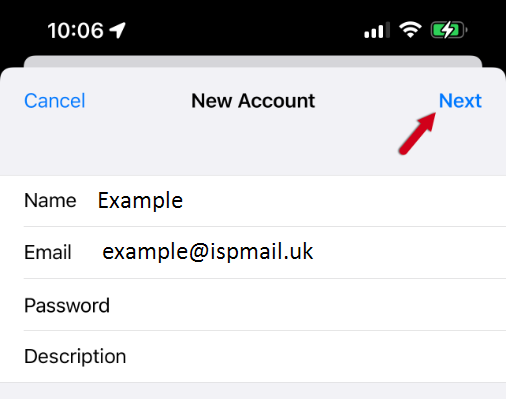
Enter your email account details – your name, email address and password. Then tap Next.
Step Seven
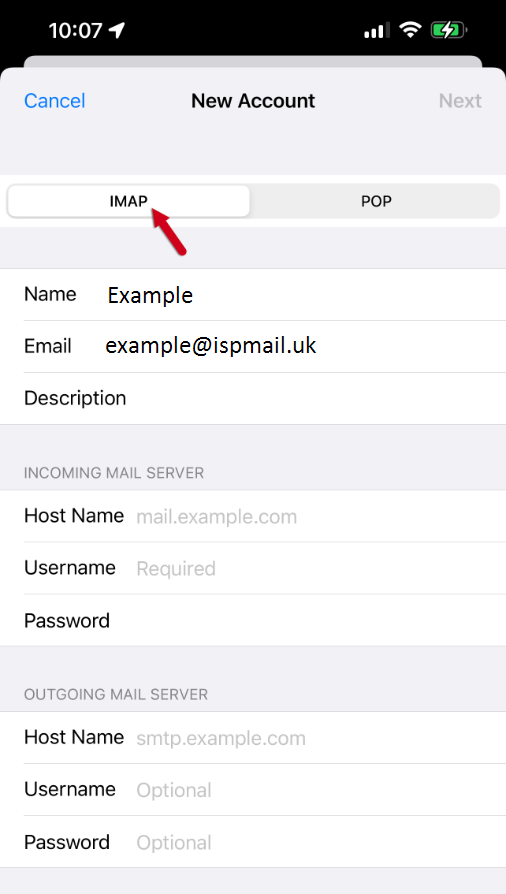
If not already selected, choose IMAP as the account type.
Step Eight
Enter the following settings.
Incoming mail server:
- Host Name: imap.ispmail.uk
- Username: Your email address
- Password: Your email password
Outgoing mail server:
- Host Name: imap.ispmail.uk
- Username: Your email address
- Password: Your email password
Tap Next in the upper-right corner to continue.
Step Nine
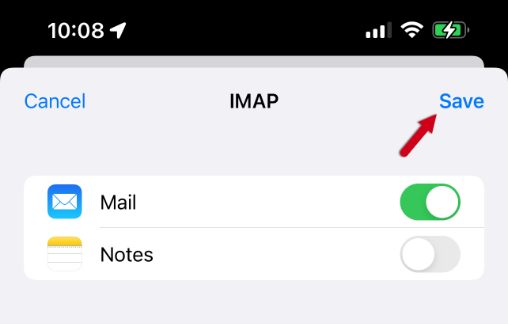
Make sure syncing of Notes is disabled. Tap Save to continue.
Step Ten
Tap Mail in the top left to return to your inbox. Your account should now be setup.