In this article we will show you how to add an IMAP email account to Microsoft Outlook. Setting up your email account using IMAP will allow you to sync messages across all your devices while keeping them stored on the mail server.
Step One
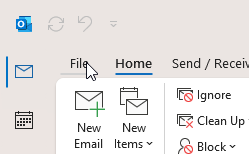
Click on File at the top left-hand corner.
Step Two
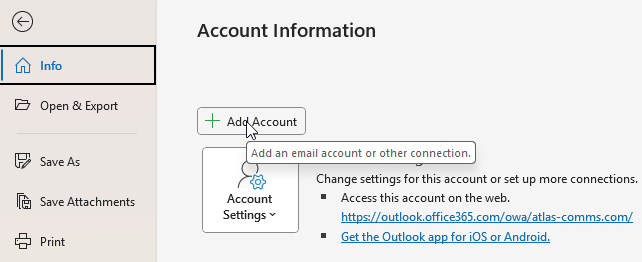
Click on Add Account.
Step Three
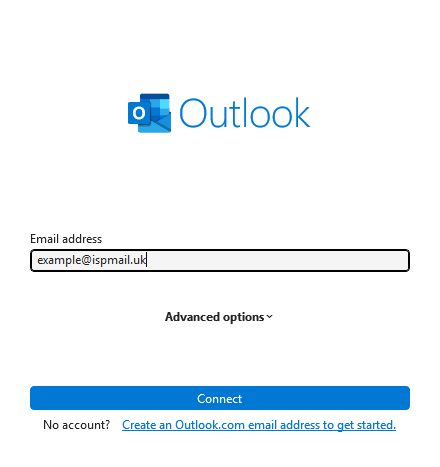
Enter your email address and click Continue.
Step Four
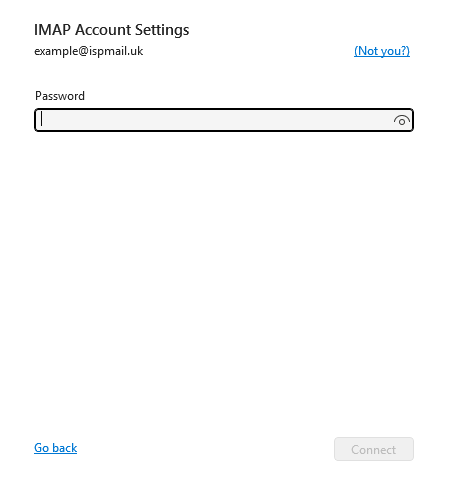
Enter your password when prompted and click Connect.
Step Five
If Outlook is unable to detect the correct settings, it will show you a screen named Advanced Setup. Go to Step Seven. Otherwise continue to Step Six.
Step Six
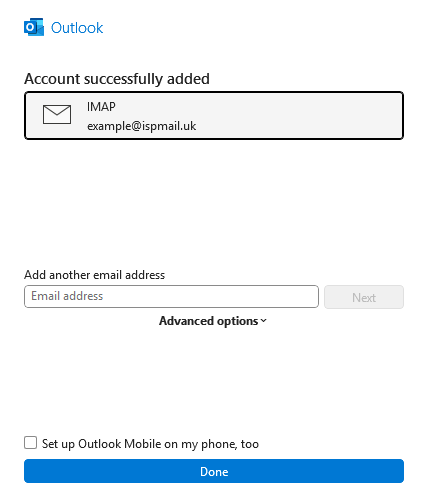
If successful, click Done.
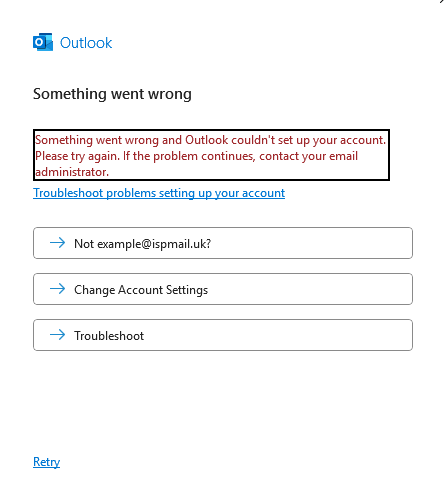
If Outlook failed to detect the correct settings, please click Change Account Settings and continue to Step Seven.
Step Seven
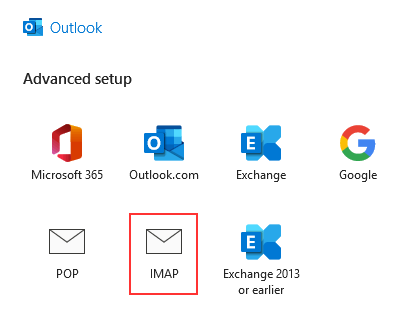
Select IMAP from the list of options.
Step Eight
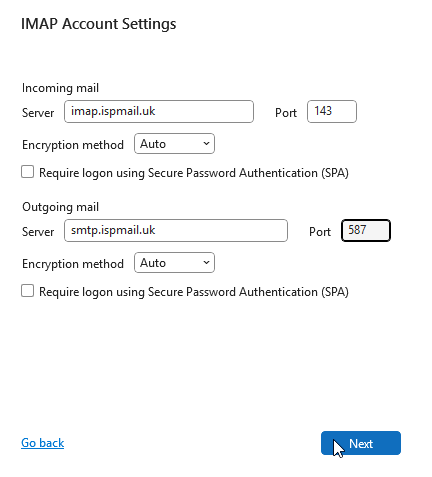
Enter the settings shown below, and then click Next.
Step Nine
After a moment, Outlook should report that your account has been successfully added. If not, please check that you have entered the correct email address, password and other settings.